If you’re Zwifting on a Mac or PC, keyboard shortcuts provide easy access to commonly used Zwift functions. Here’s a complete list of all keyboard shortcuts on Zwift.
Esc: Brings up the “Menu” button (or goes back when in a menu)
Tab: Skip workout block
Page Up/Down: Adjust workout % intensity (aka “FTP bias”) during a workout
Wireless Keyboard Recommendation
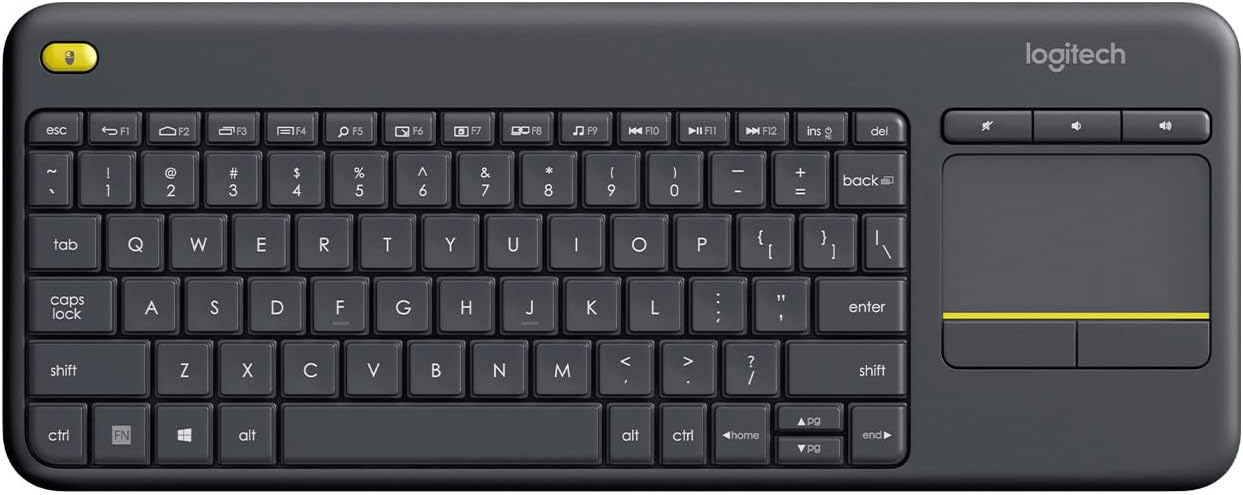
Many PC and Mac users connect a wireless keyboard to their setup for convenience. There’s only one keyboard I would recommend, and that’s Logitech’s trusty K400. It’s affordable ($35) and seemingly bulletproof, with astonishing battery life and a built-in trackpad so you don’t need a mouse.
In short, it’s the perfect keyboard for your Zwifting setup. I’ve had mine for 8 years, and it’s still working perfectly! (Pro tip: install the Logitech Options app on your computer so you can enable the F1-F12 keys by default.)
Keyboard Shortcuts Demo Video
No Keyboard Shortcuts on iOS/AppleTV/Android
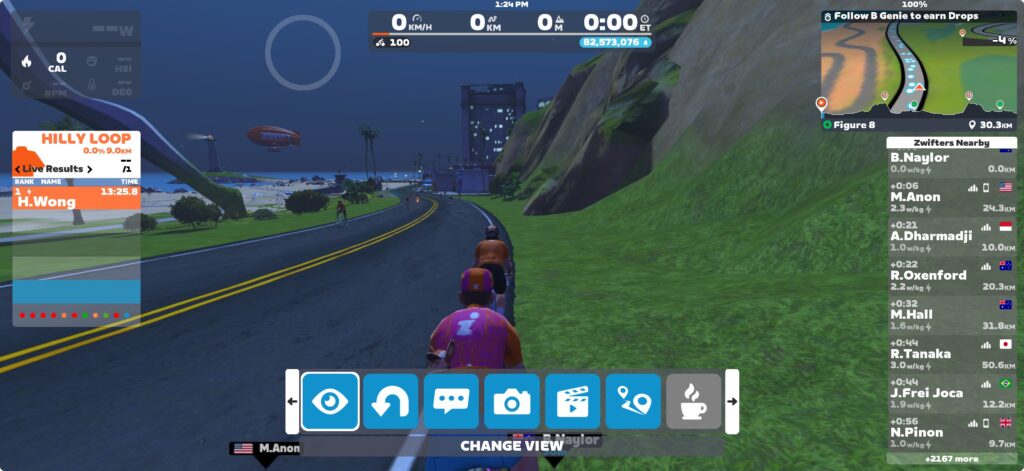
The above shortcuts are for Zwift on PC/Mac. Zwift for iOS/iPadOS/AppleTV/Android has no way to bring up the keyboard, so all game interactions are via screen touches and swipes via the action bar which is shown (see below) when you swipe up from the bottom of the screen.
Eric runs Zwift Insider in the spare time he finds between riding his bike and managing various business interests. He lives in Northern California with his beautiful wife Monica. Follow on Strava
Nice! I use a wireless keyboard and mouse on a stand next to my bike, and a laptop with the lid closed plugged into a gaming monitor. I’ve been using the “camera angle” numbers and It’s nice to see the rest of it.
The K400 is an awful wireless keyboard. I used one for a long time and was never a fan. Felt cheap and nasty (I have other high end Logi keyboards that are great) – but what made me realise how bad it was, was switching to an ‘Arteck’ keyboard.
Fully suggest trying one, it makes the Logi feel like a toy – track pad is miles better too.
Ando
1 year ago
We still miss the Lap button. But great overview. Thanks
Or at least have zwift remember one’s prefs. Near 6 o’clock view, ride stats, map orientation in zca, they keep being forgotten.
I second the K400 choice. Have been using the white one for years, very handy when zwifting.
Radim
1 year ago
I had to learn not to message using the keyboard. For some reason I’m wired to use the spacebar to start a chat and kept losing my power-ups 😆. Had no idea there were shortcuts for the “Rider actions”, thanks
GPLama
1 year ago
A is for ANT (But we now mostly use Bluetooth).
E is for ERG (But it’s workout mode. And doesn’t have to be ERG).
G is for Graph.
H is for HUD.
T is for DROPT SHOP. 🤷🏻♂️🤣
I had mentioned this before… For those using the Zwift Companion App.
we can see the Road/Course we are on… Also on the Main Screen we are able
to see in the upper right Corner the Map of the Road/Course we are on
(so a duplicate image).
It would be really nice if Zwift could make it so you could use the Camera View
button, and have the option to see whats behind you when you want (Rear view Cam)
Would be really Cool when/while Racing etc ?
Zee
1 year ago
Could we drop Hammer time?
Add a hands up celebration!
I’ve been waiting years for Zwift to add an automatic avatar celebration whenever you get a new PR or reach the top of a KOM climb.
I also wish there was an actual animation you can manually activate to show your in distress. This would be great for group rides to easily identify those who need a little extra help and motivation from the group.
Paul
1 year ago
The other caveat to know about is that the drone camera controls have been broken for a couple years now, since the new action bar was introduced.
it seems tricky for somebody at zhq to write an if statement into some code.🤷🏻♂️
Zwift would benefit if they had better streaming tools
Christopher Beattie
1 year ago
I would add a cheap air mouse has been a game changer for me. I think I paid $25 AUD off amazon. Battery life lasts months and takes minutes to charge. It has a keyboard on the back too. I would challenge anyone to a bike change and back myself.
JoeM
1 year ago
I use that same keyboard with an iPad. The keyboard comes with a USB dongle (hidden in battery compartment). To use with an iPad you will need an adapter: lightning plug to USB connector. That keyboard is very light and great for mobile work too.
G.Gladkov
11 months ago
How to do virtual shifting via KB?
simon
10 months ago
is there a way of moving hands from top of hoods to drop handle bars?
Tab (split) button is missing from the list and th printout
Michael Schoenrock
9 months ago
I’m a Logitech Creative Key and Dialpad user and of course a Logi Options+ user.
Apart from Adobe LR and PS, I have created my own shortcuts for other apps.
I’ve tried the same with Zwift, using Keyboard commands, like the ones you listed, but the Dialpad isn’t recognized by Zwift.
This might very likely be a Logitech topic, but since this post mentioned the app, I thought I ask for some advice.
Tom Sweeney
8 months ago
The Close the Gap feature seems to have gone away on my Zwift.How do I restore it?




Nice! I use a wireless keyboard and mouse on a stand next to my bike, and a laptop with the lid closed plugged into a gaming monitor. I’ve been using the “camera angle” numbers and It’s nice to see the rest of it.
Wireless keyboard is definitely the way to go! I just added a section about the amazing Logitech K400 above…
I had one of those but found the mouse did not like sweaty fingers all that much.
The K400 is an awful wireless keyboard. I used one for a long time and was never a fan. Felt cheap and nasty (I have other high end Logi keyboards that are great) – but what made me realise how bad it was, was switching to an ‘Arteck’ keyboard.
Fully suggest trying one, it makes the Logi feel like a toy – track pad is miles better too.
We still miss the Lap button. But great overview. Thanks
Yeah, that would be handy. I’d also like to see one that toggles between side HUD views (swapping the leaderboard with your ride stats panel).
Or at least have zwift remember one’s prefs. Near 6 o’clock view, ride stats, map orientation in zca, they keep being forgotten.
I second the K400 choice. Have been using the white one for years, very handy when zwifting.
I had to learn not to message using the keyboard. For some reason I’m wired to use the spacebar to start a chat and kept losing my power-ups 😆. Had no idea there were shortcuts for the “Rider actions”, thanks
A is for ANT (But we now mostly use Bluetooth).
E is for ERG (But it’s workout mode. And doesn’t have to be ERG).
G is for Graph.
H is for HUD.
T is for DROPT SHOP. 🤷🏻♂️🤣
Haha Dropt is past tense for drops?
Awesome! Thank you Eric 😀
I had mentioned this before… For those using the Zwift Companion App.
we can see the Road/Course we are on… Also on the Main Screen we are able
to see in the upper right Corner the Map of the Road/Course we are on
(so a duplicate image).
It would be really nice if Zwift could make it so you could use the Camera View
button, and have the option to see whats behind you when you want (Rear view Cam)
Would be really Cool when/while Racing etc ?
Could we drop Hammer time?
Add a hands up celebration!
I’ve been waiting years for Zwift to add an automatic avatar celebration whenever you get a new PR or reach the top of a KOM climb.
I also wish there was an actual animation you can manually activate to show your in distress. This would be great for group rides to easily identify those who need a little extra help and motivation from the group.
The other caveat to know about is that the drone camera controls have been broken for a couple years now, since the new action bar was introduced.
it seems tricky for somebody at zhq to write an if statement into some code.🤷🏻♂️
Zwift would benefit if they had better streaming tools
I would add a cheap air mouse has been a game changer for me. I think I paid $25 AUD off amazon. Battery life lasts months and takes minutes to charge. It has a keyboard on the back too. I would challenge anyone to a bike change and back myself.
I use that same keyboard with an iPad. The keyboard comes with a USB dongle (hidden in battery compartment). To use with an iPad you will need an adapter: lightning plug to USB connector. That keyboard is very light and great for mobile work too.
How to do virtual shifting via KB?
is there a way of moving hands from top of hoods to drop handle bars?
That’s determined by your drafting status and speed: https://zwiftinsider.com/zwift-drafting/
Tab (split) button is missing from the list and th printout
I’m a Logitech Creative Key and Dialpad user and of course a Logi Options+ user.
Apart from Adobe LR and PS, I have created my own shortcuts for other apps.
I’ve tried the same with Zwift, using Keyboard commands, like the ones you listed, but the Dialpad isn’t recognized by Zwift.
This might very likely be a Logitech topic, but since this post mentioned the app, I thought I ask for some advice.
The Close the Gap feature seems to have gone away on my Zwift.How do I restore it?
It went away when the draft indicator launched: https://zwiftinsider.com/draft-indicator/
No way to bring it back.
Wow! Thank you!
Plus and minus keys directly control trainer resistance when not in erg mode.